How to Create a Table of Contents [2026]: A Comprehensive Guide
Answer: A table of content is a structured list of document sections with page references, created in Microsoft Word by applying heading styles and inserting an automatic TOC for navigation, formatting, and efficient document organization across print and digital formats universally.
Table of Contents
table of contents is a topic that requires comprehensive understanding.
How to Create a Table of Contents in Microsoft Word: A Step-by-Step Guide
Introduction
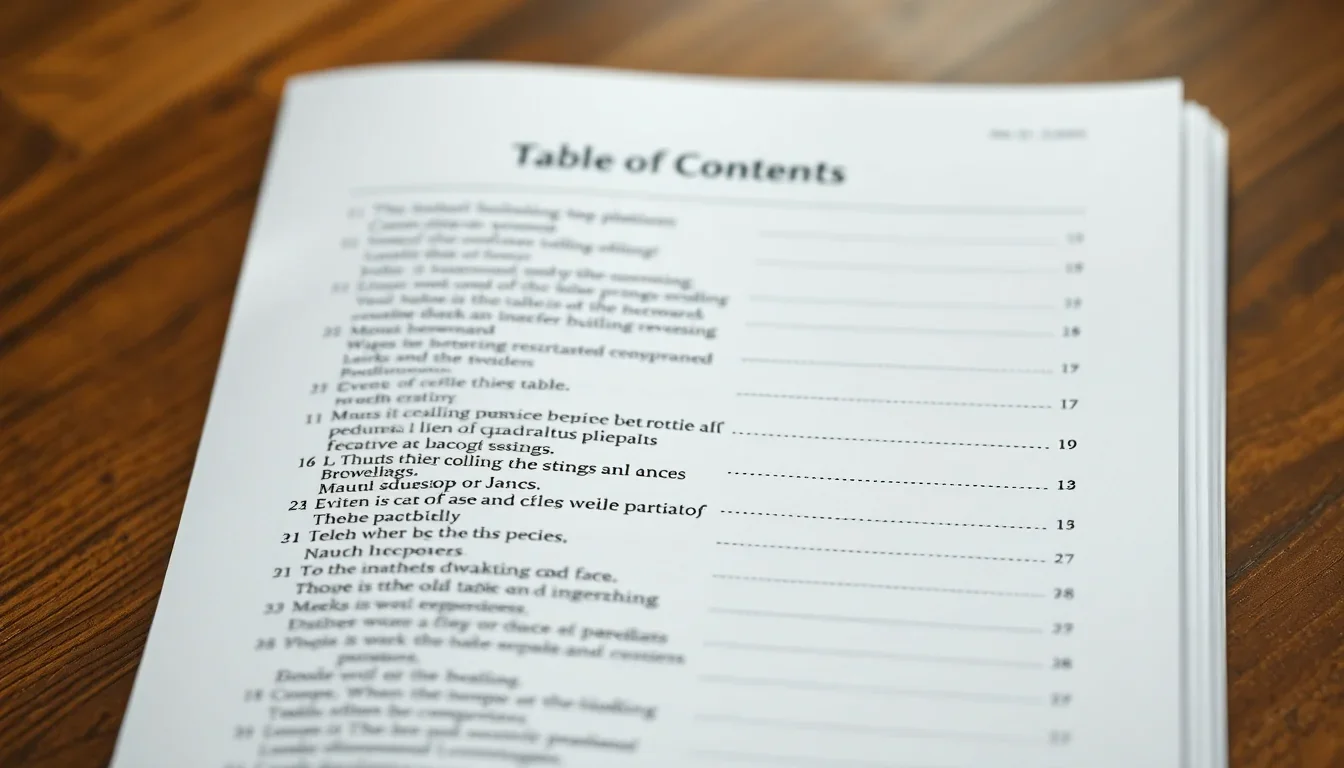
A table of content organizes document structure, improves navigation, and presents section locations with page numbers. Documents that use a clear table of content reduce reader time to locate sections, support professional presentation, and enable automatic updates as the document changes.
This guide explains how to create a table of contents in Microsoft Word, customize its styles, update entries, and resolve common problems. The guide covers Word desktop (Windows and macOS) and provides a concise comparison with Google Docs. Practical examples and step-by-step instructions accompany recommendations for professional documents.
The article includes three image placeholders: a hero image, an infographic illustrating the creation steps, and annotated screenshots of the Word interface. Each section concludes with a key takeaway to support rapid implementation. Readers receive clear, actionable steps for both basic and advanced table of content configuration in Word.
How to Create a Table of Contents in Word
To create a table of content in Word, apply built-in heading styles to document headings, place the cursor where the TOC should appear, then insert an automatic Table of Contents from the References tab. This produces an entry-based TOC with page numbers and links.
Step 1: Apply Heading Styles
Apply Heading 1, Heading 2, and Heading 3 styles to section titles to define TOC levels.
- Select the heading text.
- On the Home tab, choose the appropriate heading style: Heading 1 for main sections, Heading 2 for subsections, Heading 3 for sub-subsections.
- Use consistent style hierarchy for predictable TOC structure.

Key takeaway: Use heading styles consistently to ensure accurate TOC levels and automatic updates.
Step 2: Insert the Table of Contents
Insert the TOC by positioning the cursor, selecting References > Table of Contents, and choosing a preformatted style or a custom TOC template.
- Place the cursor where the TOC should appear (typically after the title page).
- Open the References tab and click Table of Contents.
- Select an Automatic Table style or choose Custom Table of Contents to configure levels, tab leader characters, and page number alignment.

Key takeaway: Use the References > Table of Contents menu for a fast, automatic insertion that links to styled headings.
Step 3: Configure TOC Levels
Assign how many heading levels appear in the TOC by configuring the “Show levels” setting in the Table of Contents dialog to match the document structure.
- Open Custom Table of Contents.
- Set “Show levels” to include headings up to the desired depth (commonly 2–4 levels).
- Confirm that each heading uses the correct style level for consistent TOC mapping.
Key takeaway: Adjust “Show levels” to include relevant headings without overloading the TOC with minor subentries.
Step 4: Use Automatic vs. Manual TOC
An automatic TOC updates from applied heading styles and preserves links; a manual TOC inserts editable text that does not update automatically.
- Automatic TOC: Recommended for documents that will change; it updates via References > Update Table.
- Manual TOC: Use only for fixed documents or when headings cannot use styles.
Key takeaway: Prefer the automatic TOC for dynamic documents and frequent edits.
Customizing Your Table of Contents
Customize a table of content in Word by modifying TOC styles, adjusting levels, changing tab leaders, and using format templates in the Table of Contents dialog.
Modify TOC Styles and Fonts
Change TOC font, size, and indentation by modifying TOC styles in the Styles pane and updating the style settings for TOC 1, TOC 2, TOC 3, etc.
- Open the Home tab and choose Styles > Manage Styles or Apply Styles.
- Locate TOC 1, TOC 2, TOC 3 styles and modify font, color, spacing, and indentation.
- Use paragraph settings to align page numbers and adjust leader dots.
Key takeaway: Edit TOC styles to match document branding while keeping level distinctions clear.
Change Tab Leaders and Page Number Alignment
Set tab leaders and page number alignment in the Custom Table of Contents dialog to ensure readable dots, dashes, or no leader characters between entry text and page numbers.
- Open References > Table of Contents > Custom Table of Contents.
- Under Formats, choose a style or click Modify to change tab leader characters.
- Verify alignment on print and in PDF exports to maintain layout integrity.
Key takeaway: Select tab leaders that maintain readability and match document style conventions.
Include or Exclude Specific Headings
Include or exclude headings by changing style assignments or using TC fields for manual control of TOC entries.
- Exclude a heading from the TOC by removing its heading style and replacing with a body style or a custom style not mapped to TOC levels.
- Use TC fields for precise control: mark text, press Alt+Shift+O, and add an entry to the index for TOC inclusion.
Key takeaway: Use style mapping and TC fields to curate TOC content for clarity and relevance.
Updating the Table of Contents
To update a table of content, select the TOC and choose Update Table, then choose Update page numbers only or Update entire table to refresh entries and page numbers after edits. See also Largest Contentful Paint Lcp Improvement.
Update Page Numbers Only
Use “Update page numbers only” when text edits do not change heading text but shift pagination.
- Click inside the TOC.
- Choose References > Update Table > Update page numbers only.
Key takeaway: Use page number updates for formatting or layout changes that do not alter headings.
Update Entire Table
Use “Update entire table” when heading text, levels, or structure change to fully refresh TOC entries and links. See also Google Business Profile.
- Select the TOC and choose Update Table > Update entire table.
- Verify that any new headings use the correct heading styles before updating.
Key takeaway: Perform a full update after structural edits to ensure the TOC reflects current headings.
Keyboard Shortcuts and Automation
Use F9 to update the selected TOC entry or the entire TOC when the TOC is focused; combine with macros for batch updates across multiple documents.
- Place the cursor in the TOC and press F9 to open the Update Table dialog.
- Create a Word macro to automate TOC updates before document export or distribution.
Key takeaway: Keyboard shortcuts and simple macros speed repetitive TOC updates in high-volume workflows.
Troubleshooting Common Issues
Common TOC issues include missing entries, incorrect page numbers, and non-updating links; resolve these by verifying heading styles, clearing direct formatting, and updating the TOC.
Missing Headings in the TOC
Missing headings usually indicate that the heading text lacks an appropriate heading style or the style mapping was changed.
- Confirm the heading uses Heading 1–3 or other styles mapped to TOC levels.
- Remove manual formatting that overrides style application.
- Reapply the correct heading style and update the TOC.
Key takeaway: Reapply or remap heading styles to restore missing TOC entries.
Incorrect Page Numbers
Incorrect page numbers occur when the document uses section breaks, different page number formats, or un-updated pagination; resolve by updating the TOC and checking section formatting. Learn more at How do I create an automatic Table of Contents in Word ….
- Update the TOC to refresh page numbers.
- Check for section breaks with different page number formats (roman vs. arabic) and reconcile numbering settings.
- Use Page Setup and Header/Footer tools to verify numbering continuity.
Key takeaway: Verify section break pagination and update the TOC to correct page number discrepancies. Read more at Table of contents.
TOC Links Not Working in PDF
When converting Word to PDF, export using Word’s built-in PDF export or a PDF printer that preserves links to maintain TOC hyperlinks. For details, see How to Add Entries to a Table of Contents.
- Choose File > Export > Create PDF/XPS and enable document structure tags for accessibility and link preservation.
- Avoid printing to PDF with drivers that flatten links unless link removal is intentional.
Key takeaway: Use Word’s Export to PDF to preserve TOC hyperlinks and tagged structure for navigation. Additional insights at Table of Contents.
Using a Table of Contents in Google Docs
Create a table of contents in Google Docs by applying paragraph styles and selecting Insert > Table of contents; Google Docs provides linked entries and simple formatting options.
Step-by-Step in Google Docs
Apply Heading styles: select heading text and choose Styles > Heading 1–6, then insert the TOC via Insert > Table of contents and select a linked or plain-text variant.
- Apply paragraph styles to headings.
- Place the cursor and choose Insert > Table of contents.
- Select a style: with links or with page numbers.
Key takeaway: Google Docs supports a lightweight TOC workflow optimized for collaborative, cloud-based documents.
Feature Comparison: Microsoft Word vs Google Docs
Microsoft Word provides advanced TOC customization and style control; Google Docs offers streamlined insertion and cloud collaboration but limited style depth.
| Feature | Microsoft Word | Google Docs |
|---|---|---|
| Heading style control | Advanced style editing and mapping to TOC levels | Basic heading styles linked to TOC |
| TOC customization | Custom format, tab leaders, templates, and levels | Limited formatting, fewer customization options |
| Automatic updates | Automatic TOC updates via Update Table; supports macros | Automatic update on refresh; manual refresh available |
| PDF export with links | Preserves links via Export to PDF with tags | Preserves links when using Download > PDF Document |
| Best use case | Complex documents, print-ready manuals, branded templates | Collaborative notes, simple reports, quick documents |
Key takeaway: Choose Microsoft Word for advanced formatting and print-ready documents; choose Google Docs for collaborative simplicity and cloud access.
Best Practices for Table of Contents
Design an effective table of content by selecting clear headings, limiting TOC depth to relevant levels, maintaining consistent style, and ensuring accessibility through proper tagging.
Limit TOC Depth
Limit the TOC to two or three levels for most professional documents to improve readability and reduce navigation clutter.
- Show Heading 1 and Heading 2 for standard reports.
- Add Heading 3 for complex technical manuals when necessary.
Key takeaway: A concise TOC enhances user navigation and reduces cognitive load.
Consistent Heading Language
Use concise, descriptive headings that accurately represent section content and support skimmability.
- Prefer active nouns and short phrases for headings.
- Avoid repeating identical headings across multiple sections.
Key takeaway: Clear, consistent headings produce a more usable TOC.
Accessibility Considerations
Ensure the document uses semantic heading styles and export settings that generate tagged PDFs for screen reader compatibility and accessible navigation.
- Use proper heading hierarchy without skipping levels.
- Enable document structure tags during PDF export.
Key takeaway: Semantic headings and tagged PDFs improve accessibility for all readers.
Future Trends in Document Formatting
Document navigation continues shifting toward dynamic, interactive formats where tables of contents integrate with digital navigation, search, and metadata-driven displays.
Interactive and Semantic TOCs
Interactive TOCs link with document metadata and search systems to provide context-aware navigation and filtered views of content sections.
- Semantic tagging enables context-based TOC displays for different audiences.
- Metadata-driven TOCs allow conditional inclusion of sections based on user role or document version.
Key takeaway: Future TOCs will combine semantic metadata and interactivity to improve targeted navigation.
Integration with Content Management Systems
TOCs exported from Word to CMS platforms will preserve structure, enabling automatic generation of web navigation, anchor links, and dynamic sidebars.
- Use structured headings and styles to ensure smooth import into CMS platforms.
- Leverage TOC data for automated site navigation and breadcrumbs.
Key takeaway: Structured documents accelerate digital workflows and website integration.
Conclusion
This guide defined a table of content, explained how to create one in Microsoft Word, and covered customization, updating, and troubleshooting. Apply consistent heading styles, choose the appropriate TOC depth, and update the TOC after structural edits. Implement accessibility tagging during PDF export to preserve navigation for all users.
FAQ
What is a table of contents?
A table of contents is a structured list of a document’s sections with page references and links for navigation, typically generated from applied heading styles to present the document structure clearly.
How do I create a table of contents in Word?
Create a table of contents in Word by applying heading styles to section titles, placing the cursor where the TOC belongs, and inserting an automatic Table of Contents from the References tab.
Can I customize my table of contents?
Customize the table of contents by modifying TOC styles, adjusting displayed levels, changing tab leaders, and using the Custom Table of Contents dialog to set formatting and page number options.
How do I update my table of contents?
Update the table of contents by clicking inside it and choosing References > Update Table, then selecting Update page numbers only or Update entire table based on the changes made.
What should I do if my table of contents isn’t updating?
Resolve a non-updating table of contents by verifying that headings use correct heading styles, removing direct formatting that overrides styles, and performing an Update entire table operation.
How do I create a table of contents in Google Docs?
Create a table of contents in Google Docs by applying heading styles to headings, inserting the TOC via Insert > Table of contents, and choosing a linked or plain-text format.
What are the benefits of having a table of contents?
Benefits include faster navigation, improved document usability, professional presentation, and automated updates that reflect structural changes without manual page number maintenance.
How do I format my table of contents for different styles?
Format the table of contents by editing TOC style entries in the Styles pane, adjusting fonts, indentation, and leader characters, and saving templates for repeated use across documents.
Can I have multiple tables of contents in one document?
Include multiple tables of contents by creating separate TOCs tied to specific sections using TOC fields or by marking entries with TC fields to control which headings appear in each TOC.
What is the best way to use a table of contents?
The best practice is to apply consistent heading styles, limit TOC depth to relevant levels, update the TOC after structural changes, and ensure accessibility by exporting tagged PDFs for distribution.